Tutorial
Registration
You have to create an ESRA account to explore our audio collections and metadata.
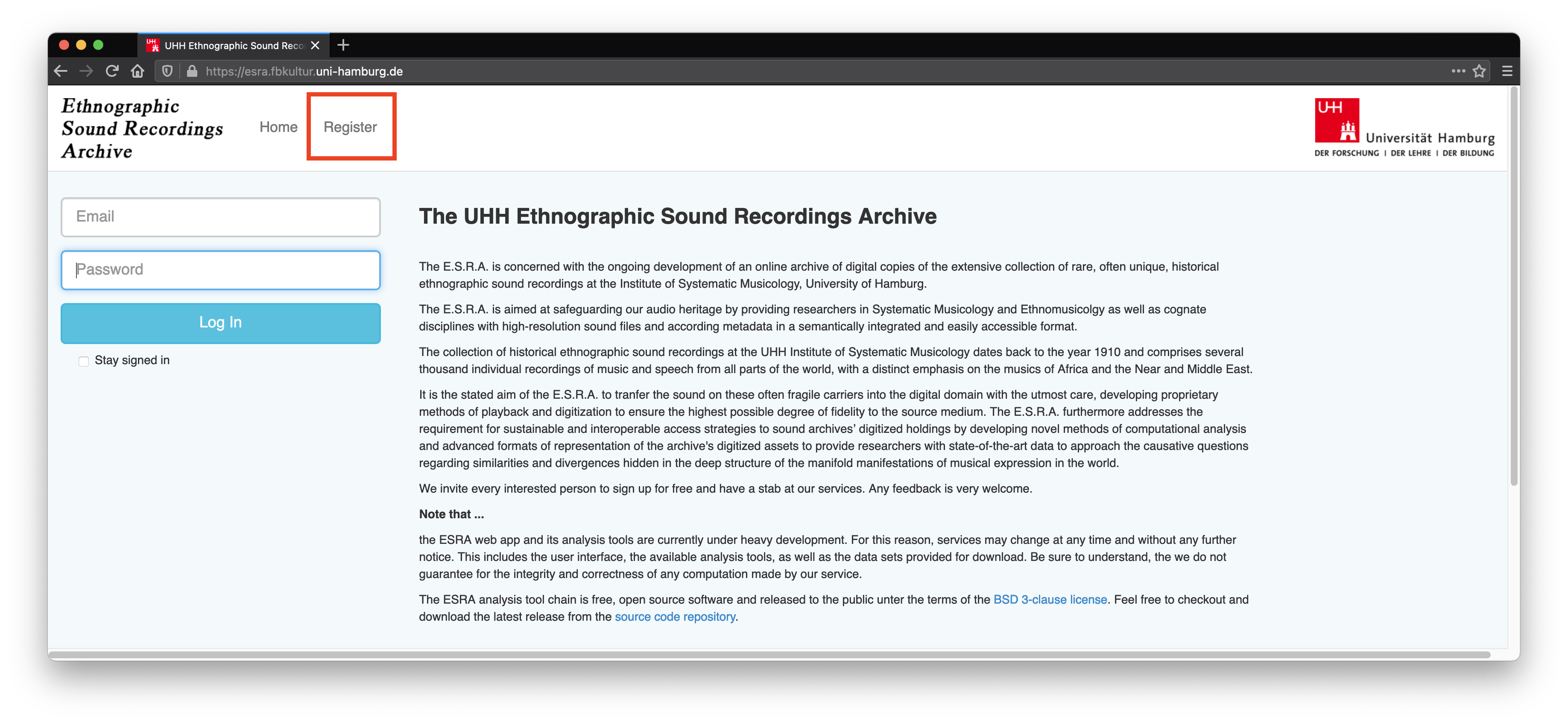
On the ESRA homepage click on Register in the top navigation bar to create an ESRA account.
Home screen
Once you are logged in you willl see the ESRA home screen. The home screen is the starting point for every interaction with ESRA. It is subdivided into for sections
menu bar
meta data search
public collections
footer
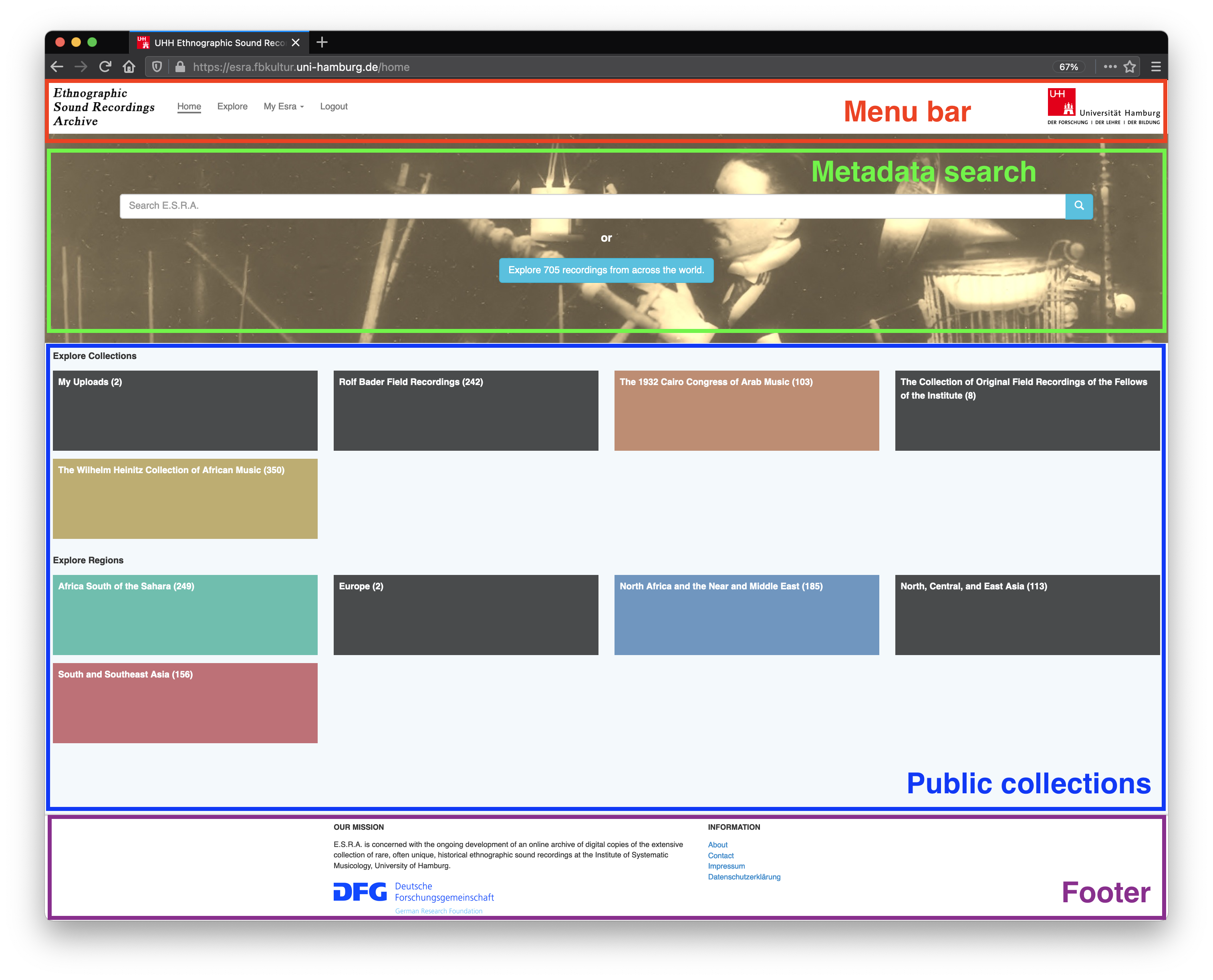
Sections of the ESRA home screen: menu bar, metadata search, public collections, and footer.
Metadata search
Below the menu bar you will find the meta data search bar. This bar enables a common meta data search. Enter a few keywords and hit the “Return” key on your keyboard or press the button with the magnifier glass on it. ESRA will then search for the respective metadata in its database. The results of your query are displayed on the explore screen. ESRA will take you there automatically.
The blue button below the meta data seach bar informs you about the number of records currently registred within the ESRA. Click on it to enter the explore screen with default settings.
Explore by …
Explore screen
The explore screen is devided into two sections: the SOM display on the left and the query result list on the right side.
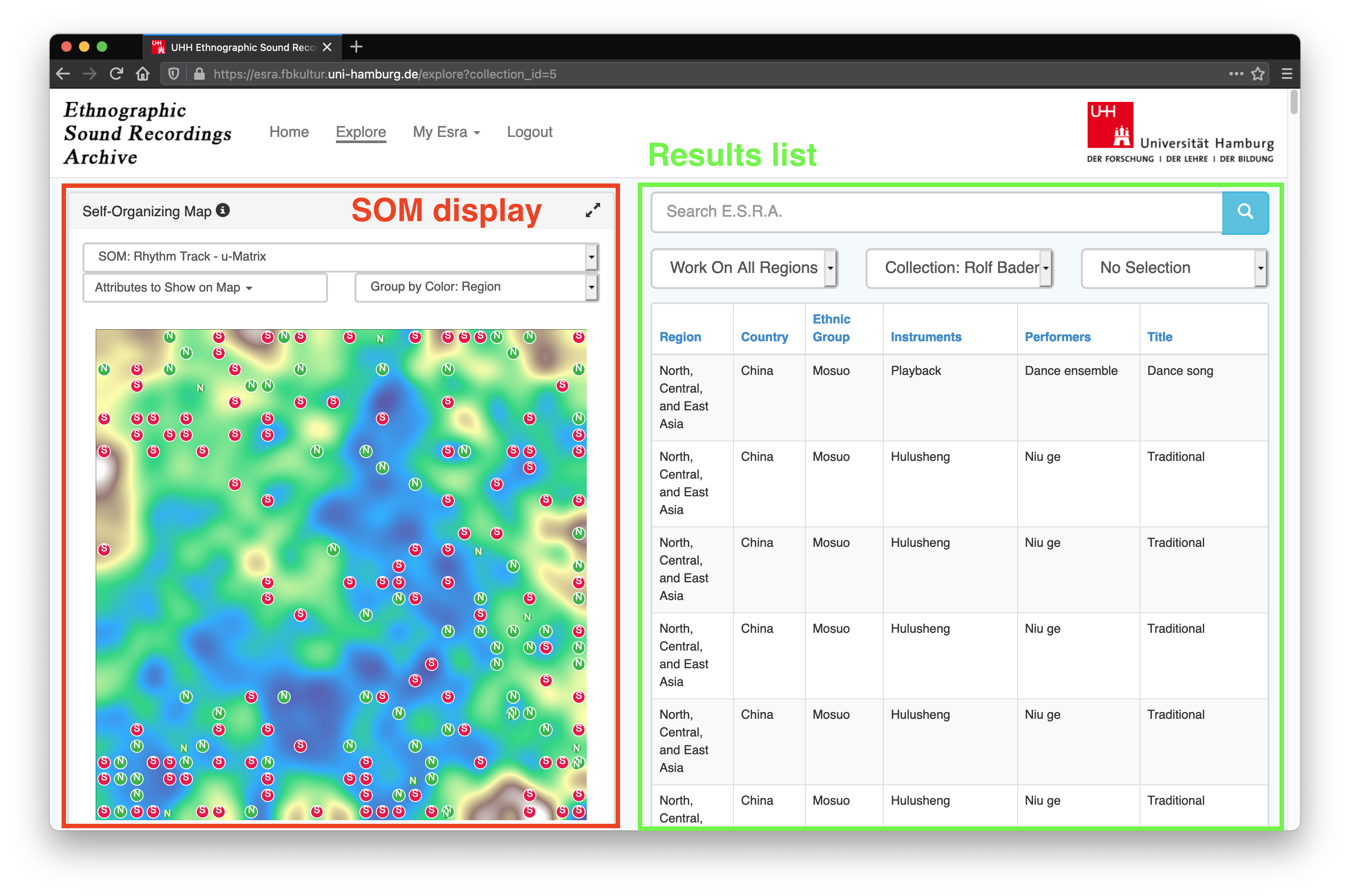
The right side of the explore screen list search results. Each list item is also diplayed as a circle marker on the SOM disply.
Query results list
The menus on the top of the song list on the right enable to change between different collections (middle menu), extract subcollections by regions (left menu), or choose a selection (see below).
When searching for an item in the collection with the search text field on the top right, all songs containing the search term in the metadata are displayed. Below is an example of the term ‘Kachin’ searched for in ‘Collection Bader’. The word Kachin does not appear in all song metadata displayed. This is because on this screen, only the most important metadata are shown:
- Todo:
controls
list click
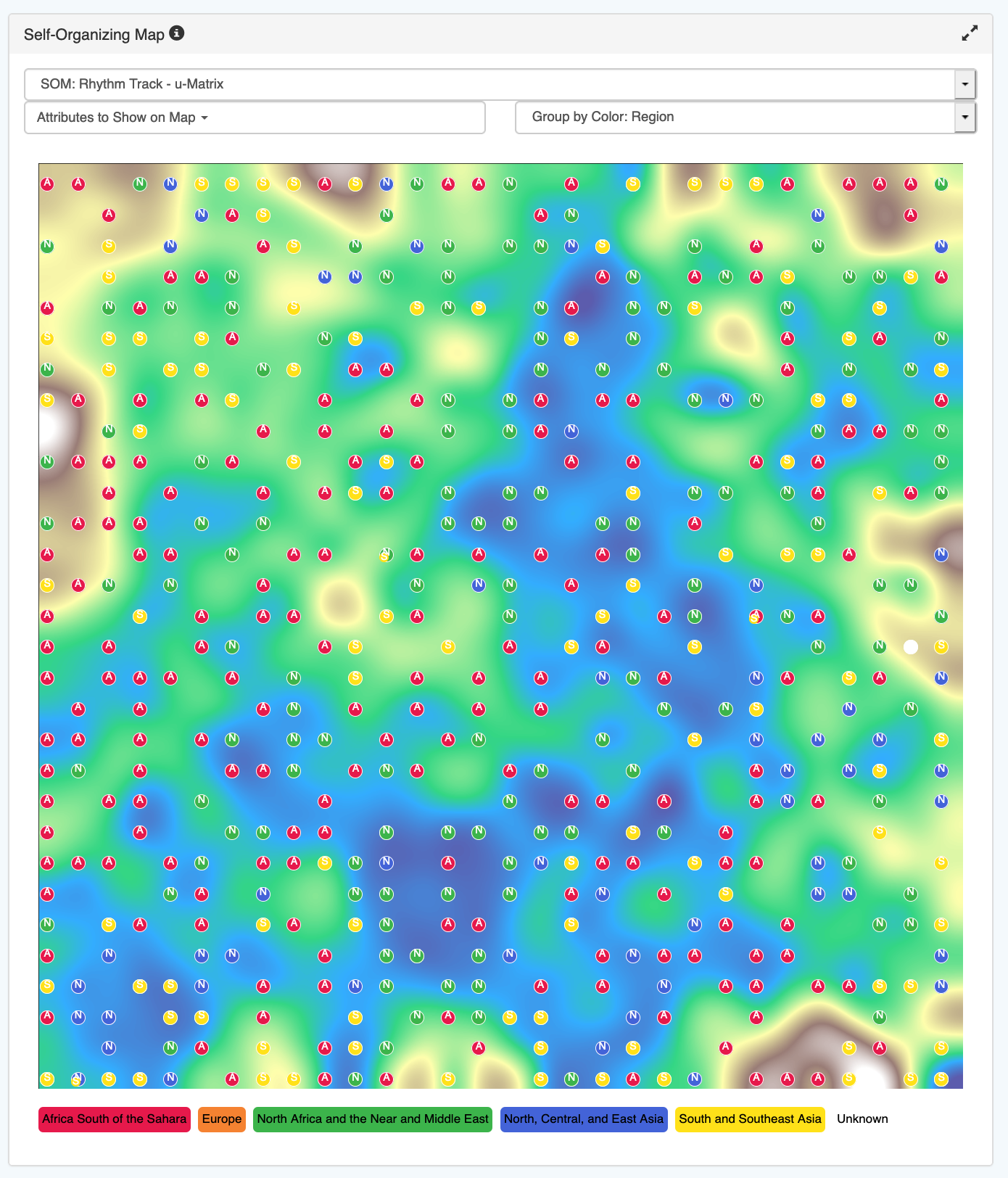
Assett detail screen
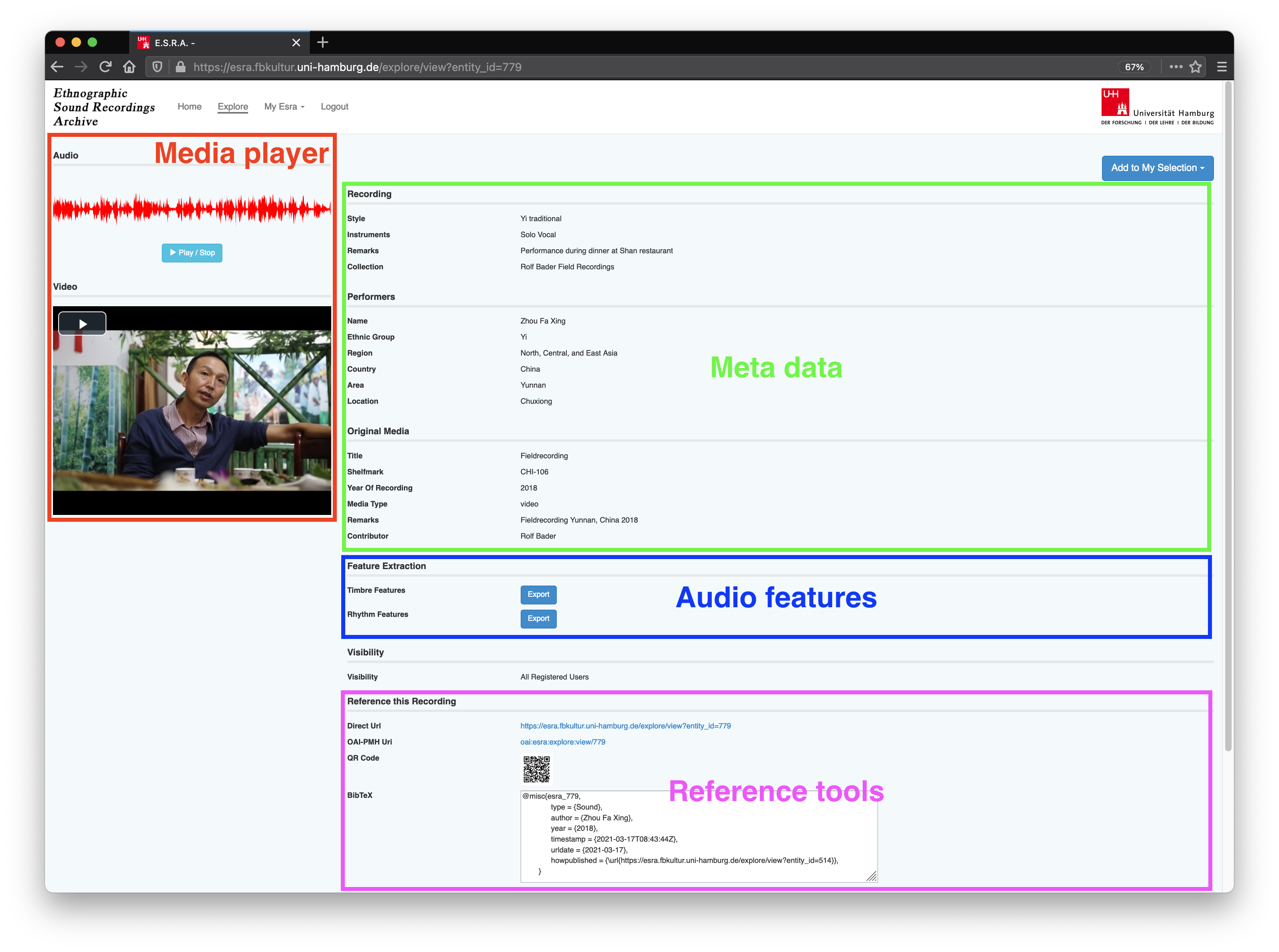
The assett detail screen includes a media player, all available metadata, access to audio features, and tools for referencing the selected recording.
Media player
Metadata
Audio features
Referencing
Adding assets to a selection
It is also possible to add an assett to a selection. This is interesting when comparing the results in the SOM. On its assett detail screen, select Add to my collection. A list will open, which displays your selection. Click on a selection name to add the current song to it. You can also create a new selection from the same menu.
Upload music
Important
ESRA supports only uncompressed formats (WAV) and lossless codecs such as FLAC and AIFF. Please make sure that your file meets these requirements before you upload.
To upload content you have to register with ESRA. After you are logged in, click on My Esra in the navigation bar on the top of the page. In the pop-up menu choose Upload Private Sound.
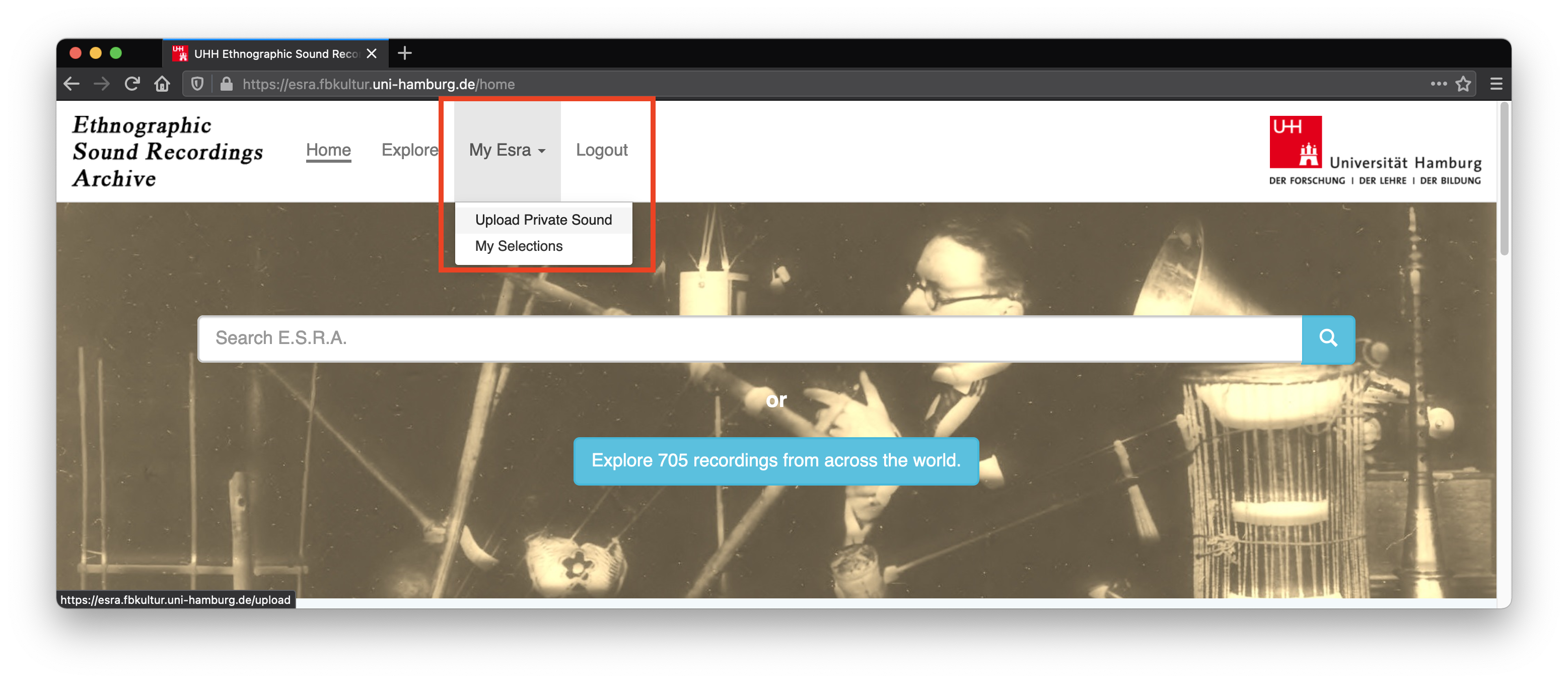
Click on My Esra then on Upload Private Sound to navigate to the upload form.
You will be redirected to the upload form. Fill out the form and then click on Start Upload at the bottom of the page.
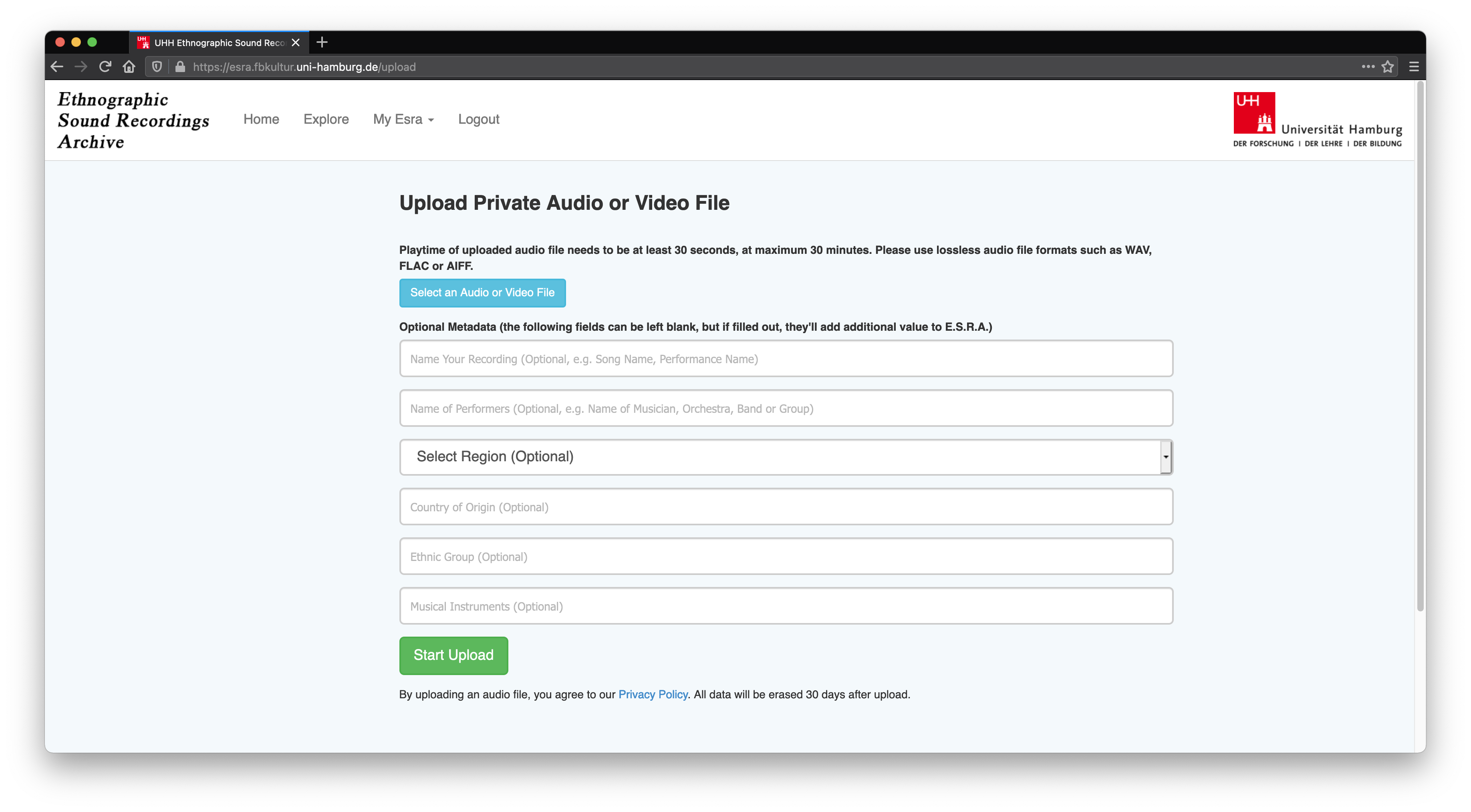
Fill out the upload form to upload sounds into ESRA. Metadata are optional.
Note
All music you upload, its metadata, as well as the respective audio features as extracted by ESRA are private to your account. Other users cannot see or play your music, or access it in any other way.
Audio feature extraction will start immediately after the upload has completed. Depending on the size of your file, extraction routines may take several minutes. You can check the status of the feature extraction on the assett detail screen.